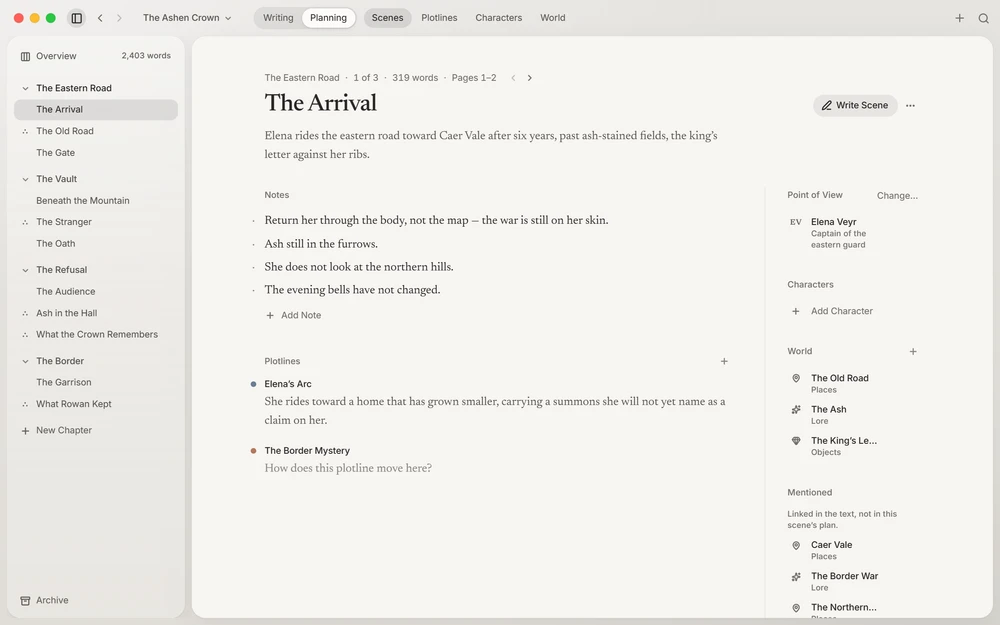
A scene planned is a scene written
In Asterysm, the scene you plan and the scene you write are one thing. Its plan (a summary, notes, the plotlines it moves, its point of view, the characters and world entries in it) sits beside its text: in Context while you write, and on its own page in Planning. Open Plan and Write Scene, in the Go menu, take you from one to the other.
The Overview
Scenes (⌘2Ctrl+2) opens on the Overview, the whole book on one page.
Across the top runs its shape: every scene as a column, as tall as it’s long, chapters set apart, and marks where a quarter, half, and three quarters of the words fall. Point at a column to see what it is, and click it to open it. However long the book, it fits.
Under it, every chapter and its scenes in order, each line with whose eyes the scene is seen through, its words, and how much of it is dialogue, as bars you can compare down the page. Chapters fold with their chevron; ⌥Alt-click one, or choose Collapse All Chapters, to fold or open them all and compare the book chapter by chapter.
A new book’s Overview invites you to plan scene by scene, before there’s a word written.
Chapters and scene plans
A chapter’s page lists its scenes as cards, in order. Walk them with the arrow keys, and reorder them by dragging or with ⌥↑Alt+↑ and ⌥↓Alt+↓. A scene break shows between the cards it separates.
A scene’s plan has room for a summary and notes, the plotlines it moves (each with a note on how it moves there), its point of view, and who and what is in it. Wherever a written scene’s length is given, so is where it falls in the printed book (784 words · Pages 6–8).
Making things
⌘NCtrl+N makes a new scene where you are: after the one on screen, or at the end of the chapter. ⇧⌘NCtrl+Shift+N makes a new chapter, which needs no title: its number heads it. Parts divide the book: Starts a Part in a chapter’s menu, or File › New Part.
Removing a scene is immediate, with Undo. One with words in it goes to the Archive, where Restore puts it back where it was.