Every scene’s history
You never have to save a version. Each scene, and each page you write, keeps its earlier text by itself: when you leave it, every quarter of an hour while you’re in it, and when the project closes. ⌘SCtrl+S keeps one now, if you like to.
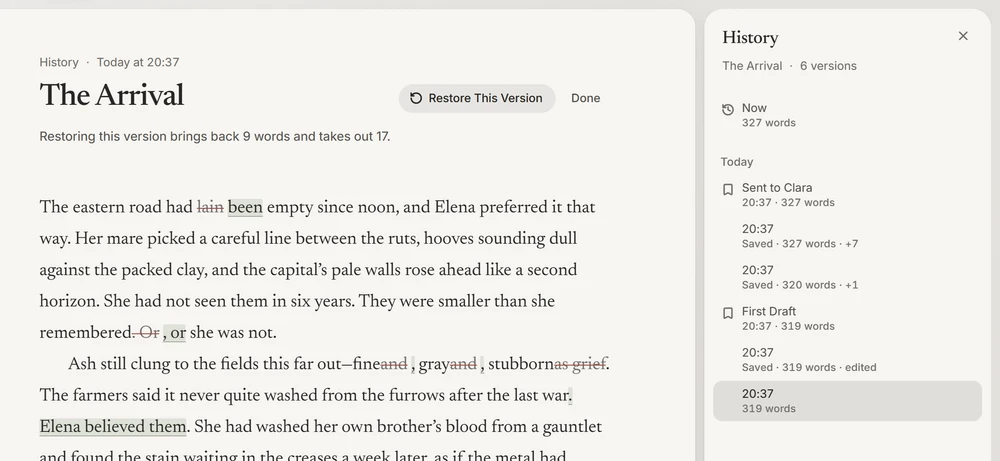
Scene History (the History button in the toolbar, or the View menu) shows the scene’s versions beside the page, newest first under the day they were kept, each with its length and how that changed. Choose one and it takes the page’s place, marked as an editor would mark it: words it would bring back on a pale wash, words it would take out struck through. Show Changes turns the marks off, to read it clean. The arrow keys walk the versions.
Restoring a version
Restore This Version brings it back. What the scene said before is kept as a version first, so Undo, or the Undo in the notice, returns it. Only the prose comes back; the scene’s plan stays as it is.
Versions of the book
Versions keep the whole book under a name at a milestone: File › Name This Version…, “First Draft”, “Sent to Clara”. Compare any of them with now to see what changed since: how many words were added and taken out, and scene by scene, which changed and by how much, which are new, and which are gone. A scene gone since can be had back from the comparison.
A version can also be opened as a project of its own, beside this one and never over it, to read or to take something from.
How long they’re kept
Every version from the last week; then the last of each day, and the last you saved each day, for three months; then the last of each week. The newest always stays, and so does every scene in a named version, for as long as you keep the version.
History lives in the project’s file, so it goes wherever the book goes.